
Customer guide
Thinking Fish Assist
Remote support from Thinking Fish, step by step. Download it at thinking.fish/assist.
What it is
Thinking Fish Assist lets a Thinking Fish engineer see and, with your permission, use your computer or phone so we can fix things quickly. It replaces AnyDesk for our customers.
- Nobody can connect unless you give them your ID and click Accept(or you have agreed to unattended access for a computer we manage, see below).
- You see everything we do, and you can end the session at any moment.
- Connections are end-to-end encrypted and go through our own server in London.
Windows
- Go to thinking.fish/assist and click Download for Windows.
- Open the downloaded file (
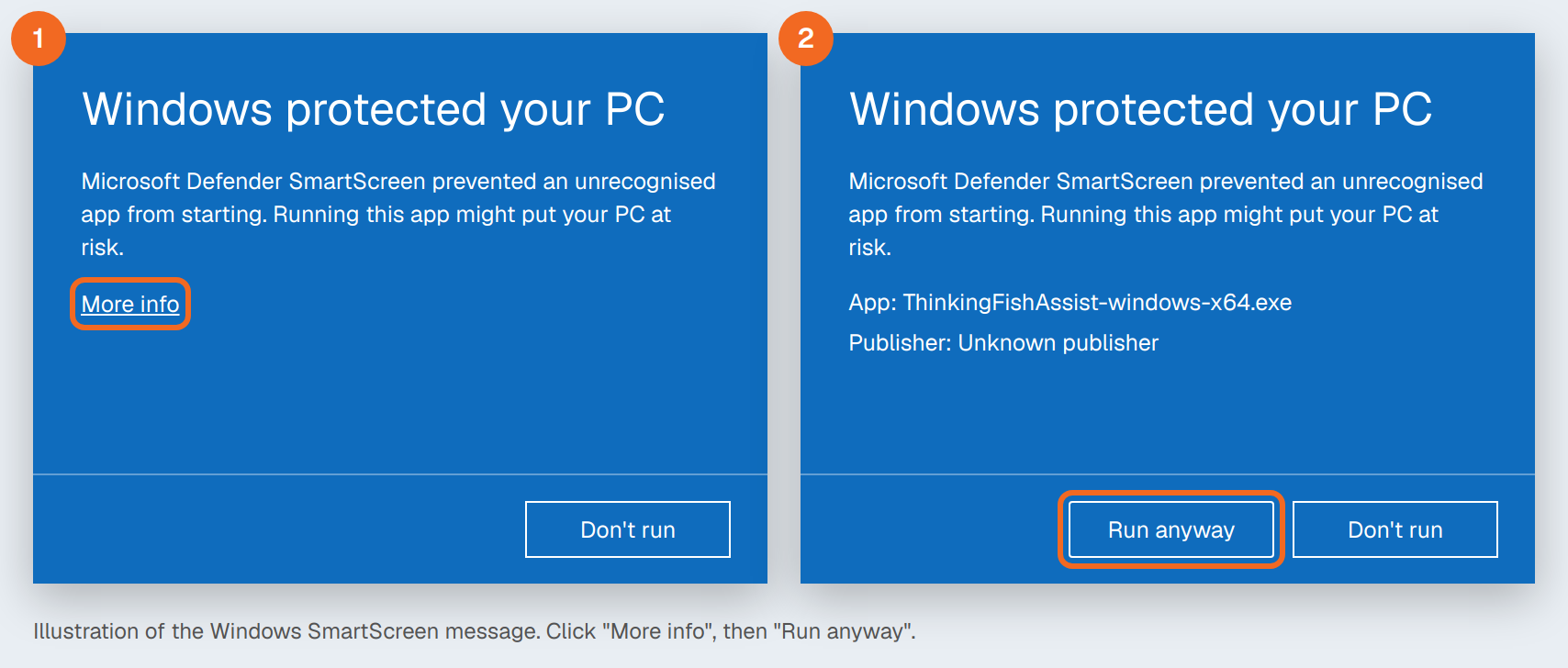
ThinkingFishAssist-windows-x64.exe). - Windows may warn you. If you see a blue box saying "Windows protected your PC", click More info, check the app name is ThinkingFishAssist, then click Run anyway. This happens because the app is new; it does not mean anything is wrong.
- If Windows asks "Do you want to allow this app to make changes to your device?", click Yes.
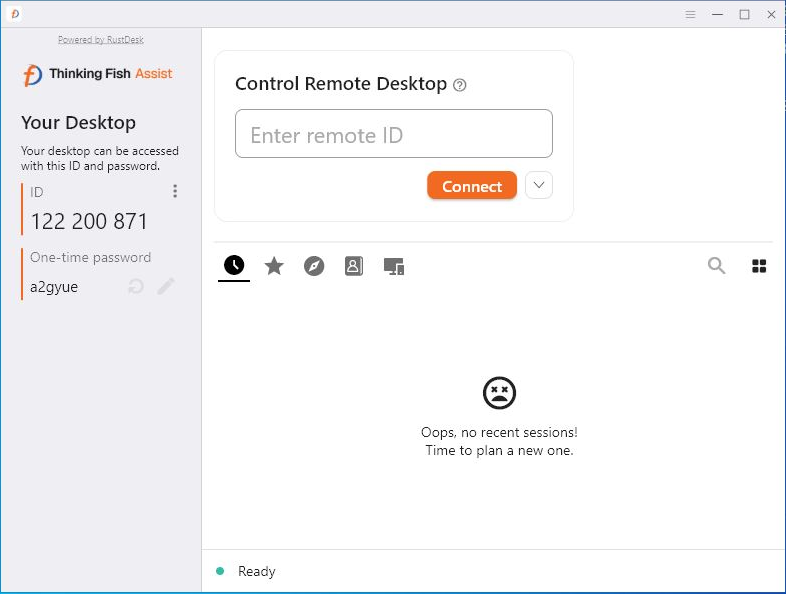
- Thinking Fish Assist opens. Read us the 9-digit number under ID.
You do not need to install it. If we ask you to, click Install in the app and follow the prompts; it then starts with Windows so we can help you faster next time.
Mac
- Go to thinking.fish/assist and download the Mac version. Most Macs from 2021 onwards have Apple silicon; to check, open the Apple menu, choose About This Mac and look at Chip.
- Open the downloaded file and drag Thinking Fish Assist onto Applications.
- Open it from your Applications folder. If macOS says it cannot check the app, open System Settings, Privacy & Security, scroll down and click Open Anyway.
- The first time, the app asks for two permissions so we can see and use your screen. Click each button it shows, and in System Settings, Privacy & Security switch Thinking Fish Assist on under:
- Screen & System Audio Recording (to see your screen)
- Accessibility (to move the mouse and type)
- Read us the 9-digit number under ID.
Android
- On your phone or tablet, go to thinking.fish/assist and tap Download for Android.
- Open the downloaded file. If asked, allow your browser to install unknown apps, then tap Install.
- Open Thinking Fish Assist, go to the Share screen tab and tap Start service. Allow screen capture when asked.
- So we can tap and type for you, turn on Thinking Fish Assist Input when the app takes you to Accessibility settings.
- Read us your ID from the Share screen tab.
During a session
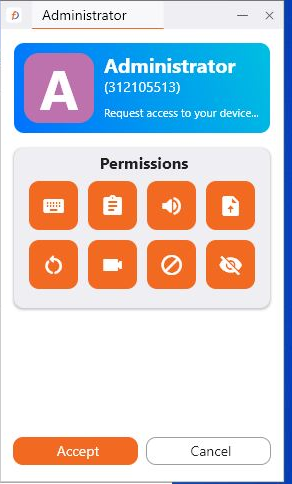
- When we connect, a small window shows who is connecting. Click Accept. If you were not expecting us, click Cancel.
- That window stays open while we are connected. It shows what we are doing (screen, file transfer) and has a Disconnect button. Closing it ends the session straight away.
- We may send you a chat message or ask to transfer a file; you will see it on screen.
Unattended access (computers we manage)
For computers we look after under a support agreement, we may ask to set up unattended access so we can fix things without disturbing you, for example out of hours. We only do this with your agreement.
- We install Thinking Fish Assist as a service and set a long, private password that only Thinking Fish engineers hold. It is never shared outside Thinking Fish.
- You can still see when we are connected: Thinking Fish Assist opens a session window (it may sit minimised in the taskbar) showing who is connected, with a Disconnect button.
- To stop unattended access at any time, tell us, or uninstall the app (see below).
Staying safe
- Thinking Fish will never cold-call you and ask for remote access. If someone calls claiming to be from us, your bank, Microsoft or your broadband provider and asks you to install a remote-control app, hang up and call us on 020 7100 2222.
- Never read out the password shown in the app. We connect using your ID and you click Accept.
- Only download Thinking Fish Assist from thinking.fish/assist.
Removing it
- Windows: if you only ran it, just close it (and delete the download). If it was installed: Settings, Apps, Thinking Fish Assist, Uninstall.
- Mac: quit it, then drag it from Applications to the Bin.
- Android: press and hold the app icon and choose Uninstall.