Get Thinking Fish Assist
Our secure remote-support app. Download it, open it, and tell us the ID shown in the app. We see your screen only after you click Accept, and you can end the session at any time.

How a support session works
- Call or email us020 7100 2222 or hello@thinking.fish. We will ask you to open Thinking Fish Assist.
- Tell us your IDIt is the 9-digit number under ID in the app. Read it to us, or send it with the form below.
- Click AcceptA window shows who is connecting. Nobody can see your screen until you accept.
- Watch, then closeYou can see everything we do. Click Disconnect or close the window to end it.
Downloads
Windows
Windows 10 and 11 (64-bit). Runs straight away; you only install it if we ask you to.
Download (.exe)For IT teams: MSI package for silent installs.
Mac
macOS 12 or later. Choose the one for your Mac (Apple menu, About This Mac, "Chip").
Android
Android phones and tablets. Your phone will ask you to allow installing from your browser the first time.
Download (.apk)iPhone and iPad
Apple does not allow any app to remote-control an iPhone or iPad. If you need help with one, call us on 020 7100 2222.
Windows may warn you, and that is expected
Because Thinking Fish Assist is new, Windows SmartScreen may show a blue box saying "Windows protected your PC". The file is safe: it comes straight from us.
- Click More info (the small link under the message).
- Check it says the app is ThinkingFishAssist, then click Run anyway.
- If Windows asks "Do you want to allow this app to make changes?", click Yes.
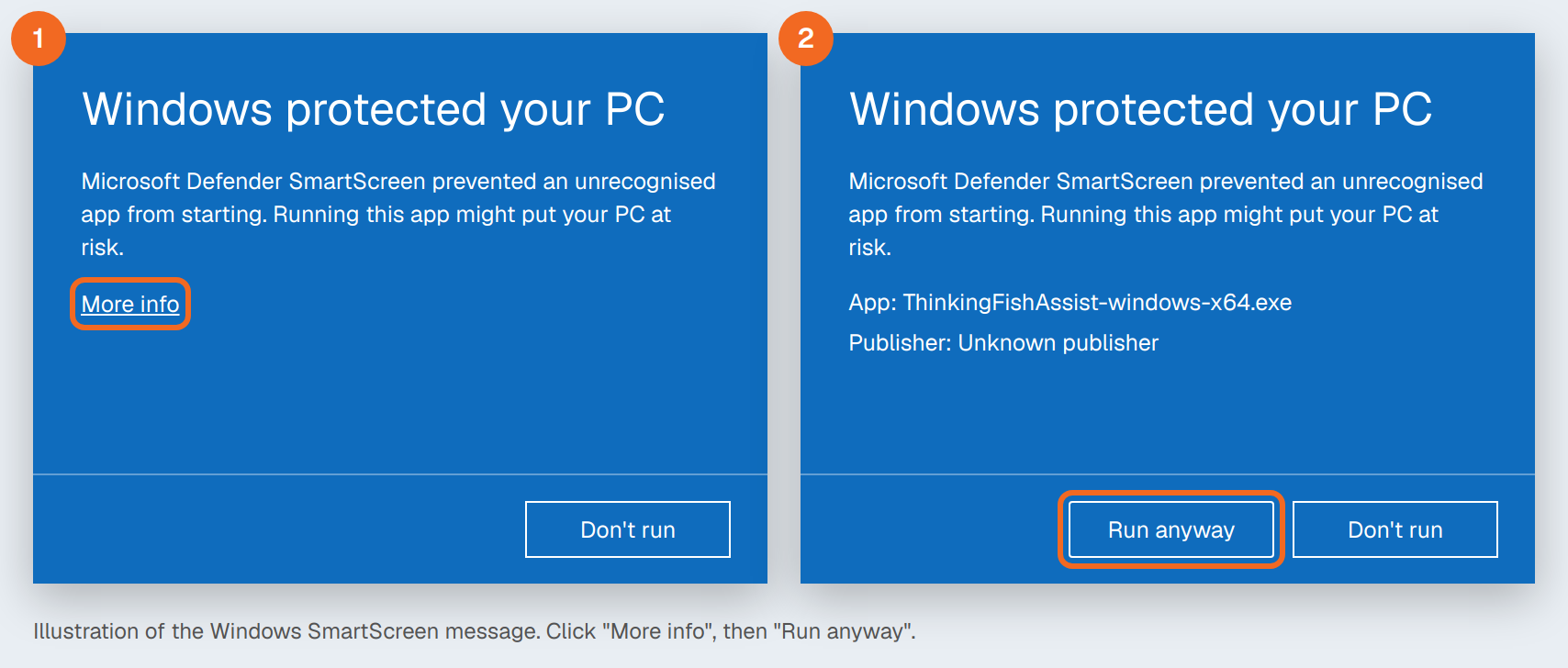
Not sure? Call us on 020 7100 2222 before you click anything. We will never ask you to install software you did not expect.
On a Mac: first-time set-up
- Open the downloaded file and drag Thinking Fish Assist into Applications.
- Open it from Applications. If macOS says it cannot check the app, open System Settings, Privacy & Security, scroll down and click Open Anyway.
- So we can see and use your screen, turn Thinking Fish Assist on in System Settings, Privacy & Security under Screen & System Audio Recording and Accessibility. The app shows buttons that take you to each one.
On Android
- Open the downloaded file. If asked, allow your browser to install unknown apps, then tap Install.
- Open Thinking Fish Assist and tap Share screen (Start service), then allow screen capture.
- To let us tap and type for you, turn on Thinking Fish Assist Input in Settings, Accessibility.
Tell us your ID
Already on the phone with us? Just read it out. Otherwise send it here and we will connect as soon as we can.
Step-by-step guide: read online or download the PDF.